
Both "Add Credit" and "Auto Top-Up" (the two buttons at the top of Billing & Wallet) start with the same step: picking a payment rail. Four Mobile Money providers and two card networks are available — which ones actually work depends on the account's billing country.
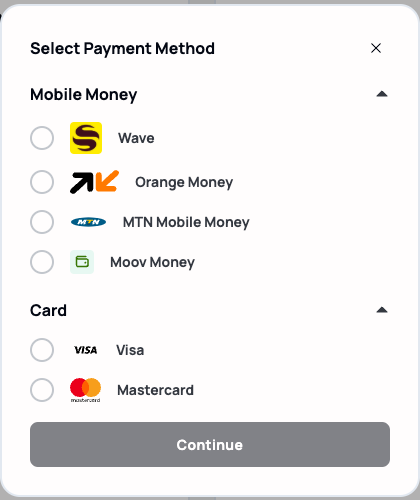
Adding credit once
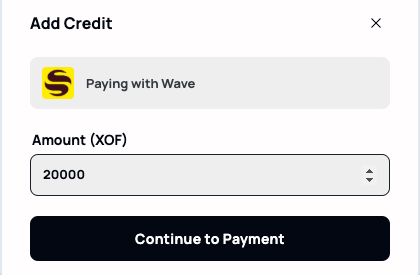
Picking a rail for "Add Credit" goes straight to an amount field, pre-filled with a default that's easy to change.
Note. Qeda doesn't store or ever see card numbers or mobile money PINs — FedaPay's hosted checkout handles that part entirely, then redirects back once payment succeeds or is cancelled.
Auto Top-Up
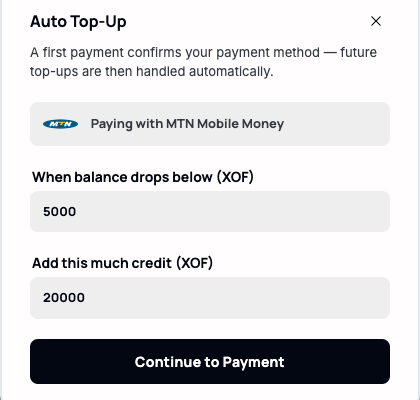
Auto Top-Up asks for two numbers instead of one: the balance threshold that triggers a top-up, and how much to add each time. The first activation still runs a real payment — that's what authorizes the rail for the automatic charges that follow.
Warning. A low threshold with a slow-to-process rail can still let the wallet hit zero before a top-up completes (see "What happens when your wallet reaches zero"). Set the threshold with a few days of runway to spare, not the bare minimum.